SPEECH TO TEXT CONVERTER · GETTING STARTED
Now you can just say it.
Already installed the extension? Start with these three steps. If you have not, add it to Chrome.
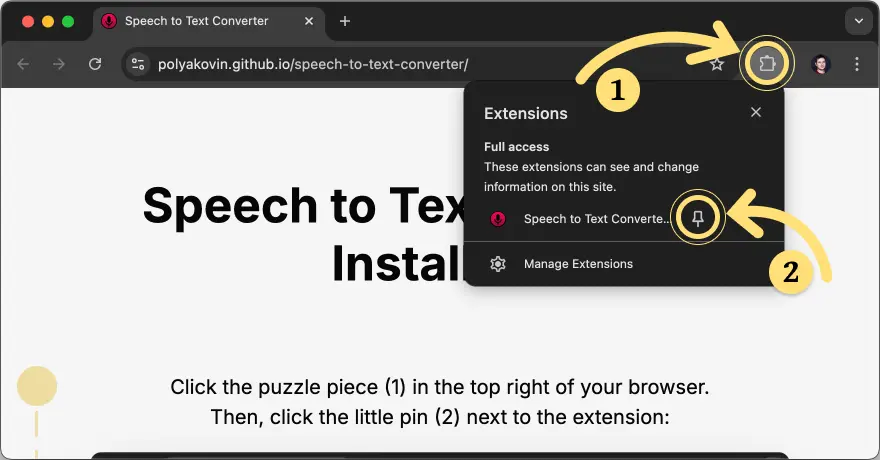
Pin the extension
Click the puzzle piece in the top-right corner of Chrome, then click the pin next to Speech to Text Converter.
Try it right here
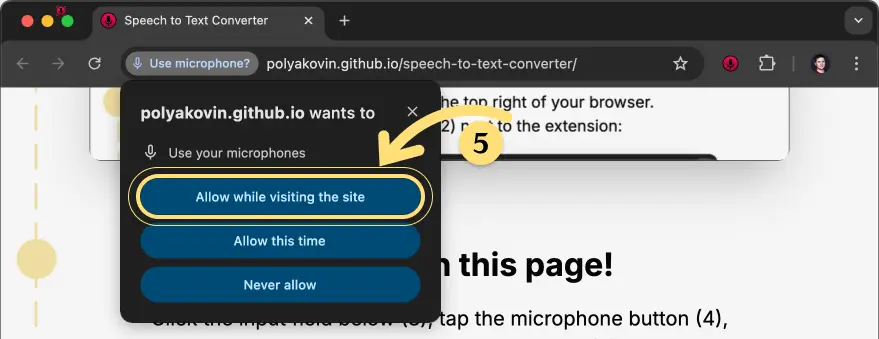
Click the field below, then the extension microphone button. Allow microphone access and speak. This example requires the installed extension. To dictate without installing it, open Speech to text.
Use it on other websites
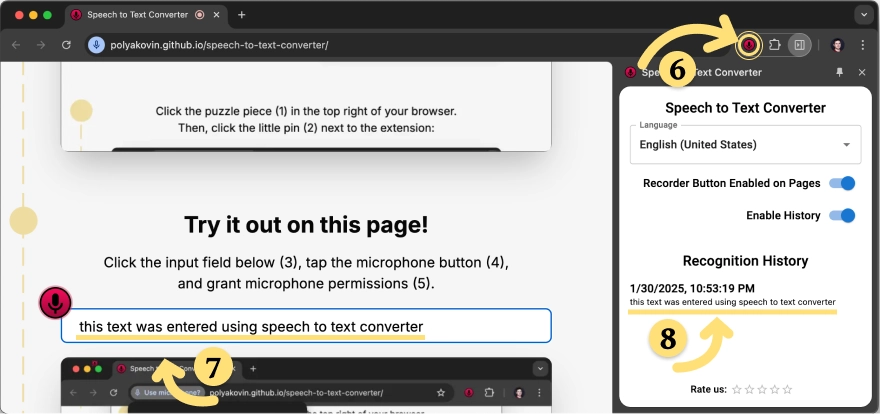
Open the extension on a page with a text field. Your words appear in the field and in the browser side panel. If the website editor does not support direct insertion, dictate in the side panel and copy the text manually.
Browser-mode history is stored locally. Optional AI actions in the extension send only the audio or text you explicitly submit.